Check the physical destination
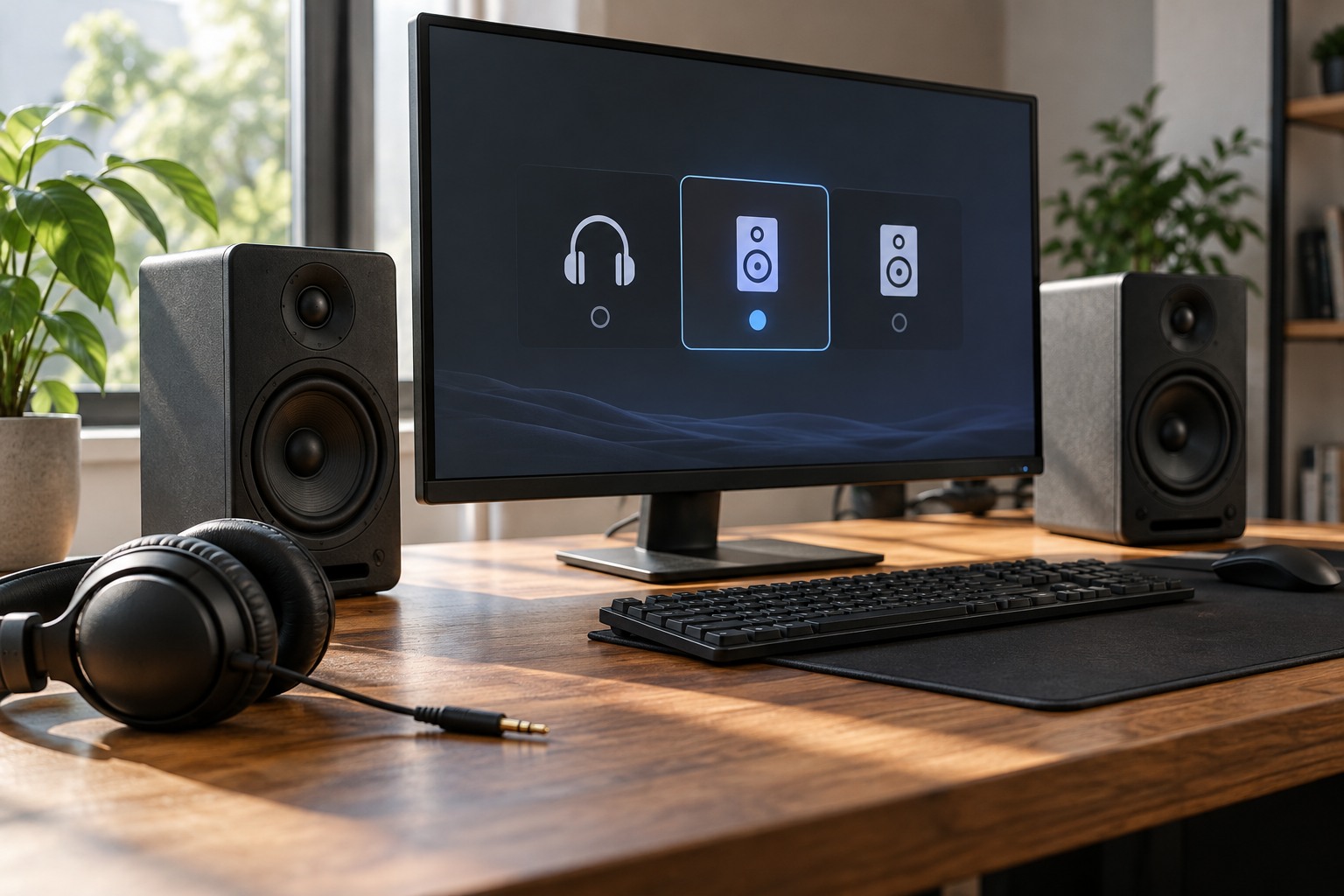
Look at the device you expect to hear: headset, speakers, monitor or television. Check its power, physical mute and moderate volume setting. Confirm that the cable is in the intended output rather than a microphone input or an unrelated socket. If wireless, verify the active connection and whether the device has switched to a phone or another computer.
Play a known local sound through the platform's normal test facility where available. If no application reaches the device, investigate the system output and connection first. If other sounds work but the game does not, the problem is more likely to involve the game's or application's own selection. This distinction saves time compared with changing every audio setting at once.
Follow each selection layer
Windows can expose several playback devices, including HDMI or DisplayPort audio associated with a monitor. Microsoft recommends checking the selected output and the volume mixer when troubleshooting sound. A newly connected display or headset can make an unexpected device available, so read the names rather than assuming the first listed item is correct.
Next inspect the game's audio menu and any separate chat application. A program may use the system default or retain a specific named output. Changing the default does not always move an application that has an explicit selection. Some programs require a restart after the device changes. Test the change before adjusting more controls.
Input and output are separate choices. Selecting the correct speakers does not choose the microphone, and a working microphone meter does not prove sound is going to the right headphones. In a headset with several software endpoints, consult the maker's instructions for which endpoint carries game audio and which handles communication, if that distinction exists.
Check application-specific mute controls as well as the selected device. A game can use the correct headphones while its own mixer channel is muted, and a headset wheel can be turned down even though the software slider is high. Change the nearest known control first and use a short test sound. This keeps an accidental mute from leading to a large driver change or an unexpectedly loud result when the missing control is finally restored.
Use a controlled reconnection test
Disconnect and reconnect the intended device through its normal procedure, then observe which output is selected. Avoid doing this during an important recording or match. If the application falls back to another device when the headset disappears, note that behavior and restore the intended selection. A brief test after a restart can reveal whether the setting persists.
For example, a laptop may send game audio to a monitor after docking while a chat application remains assigned to a USB headset. Both routes can be working correctly but differ from the arrangement you intended. Select the desired destination in each layer and test one sound source at a time. Do not raise every volume control to maximum in an attempt to find a missing signal.
Escalate only after the simple path is checked
If the correct route still produces no sound, follow the platform and device manufacturer's troubleshooting guidance. Check supported drivers or firmware through official channels and preserve current settings before making larger changes. Reinstalling software is a later step, not the first response to an output that was merely redirected.
Once the setup works, record the device names used by the system, game and chat tool. Names that look similar can be difficult to remember after an update. Keep a reachable mute and volume control, then test a normal game scene and conversation at comfortable levels. The goal is a predictable route you can restore, not an unexplained combination of sliders that happens to make noise.