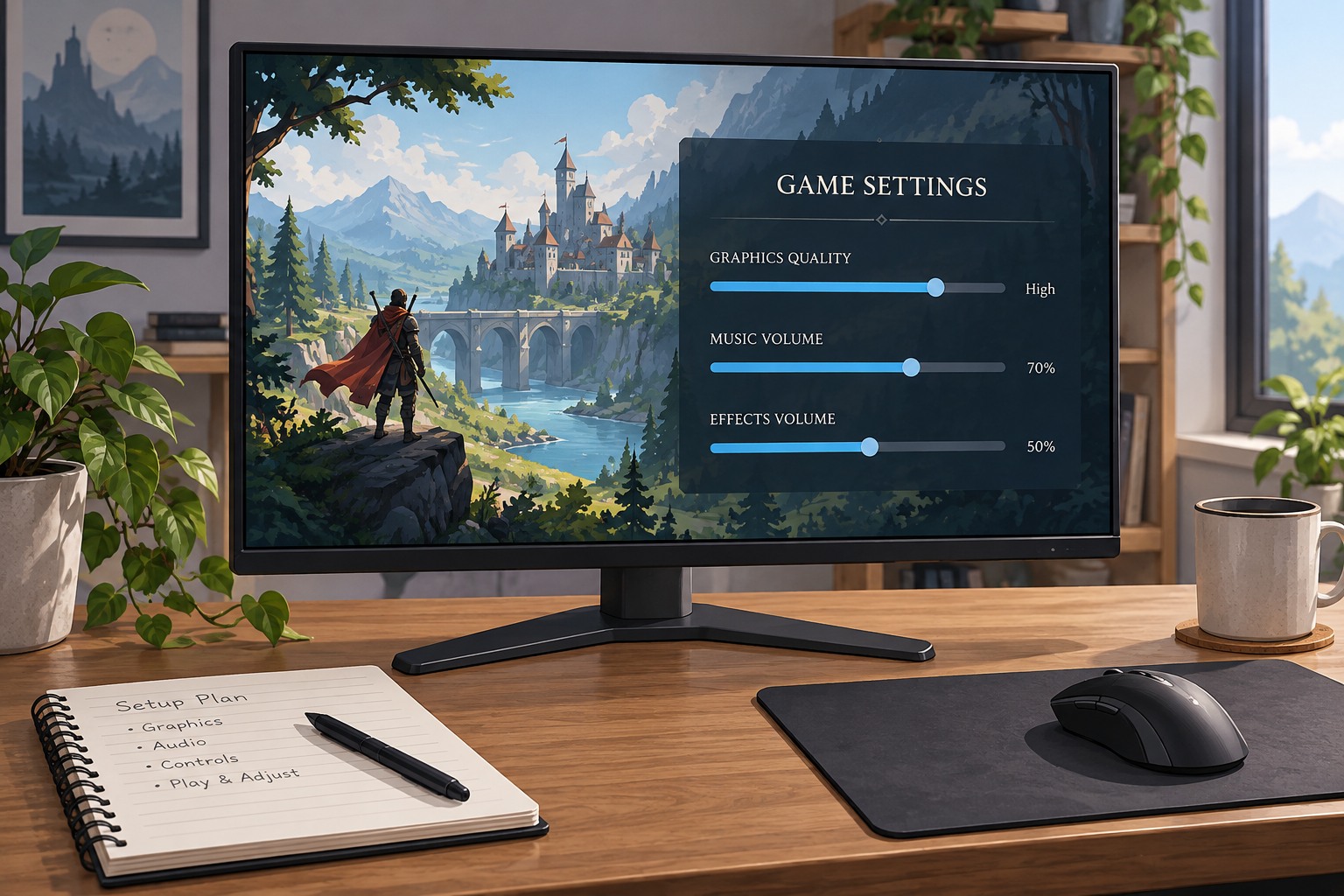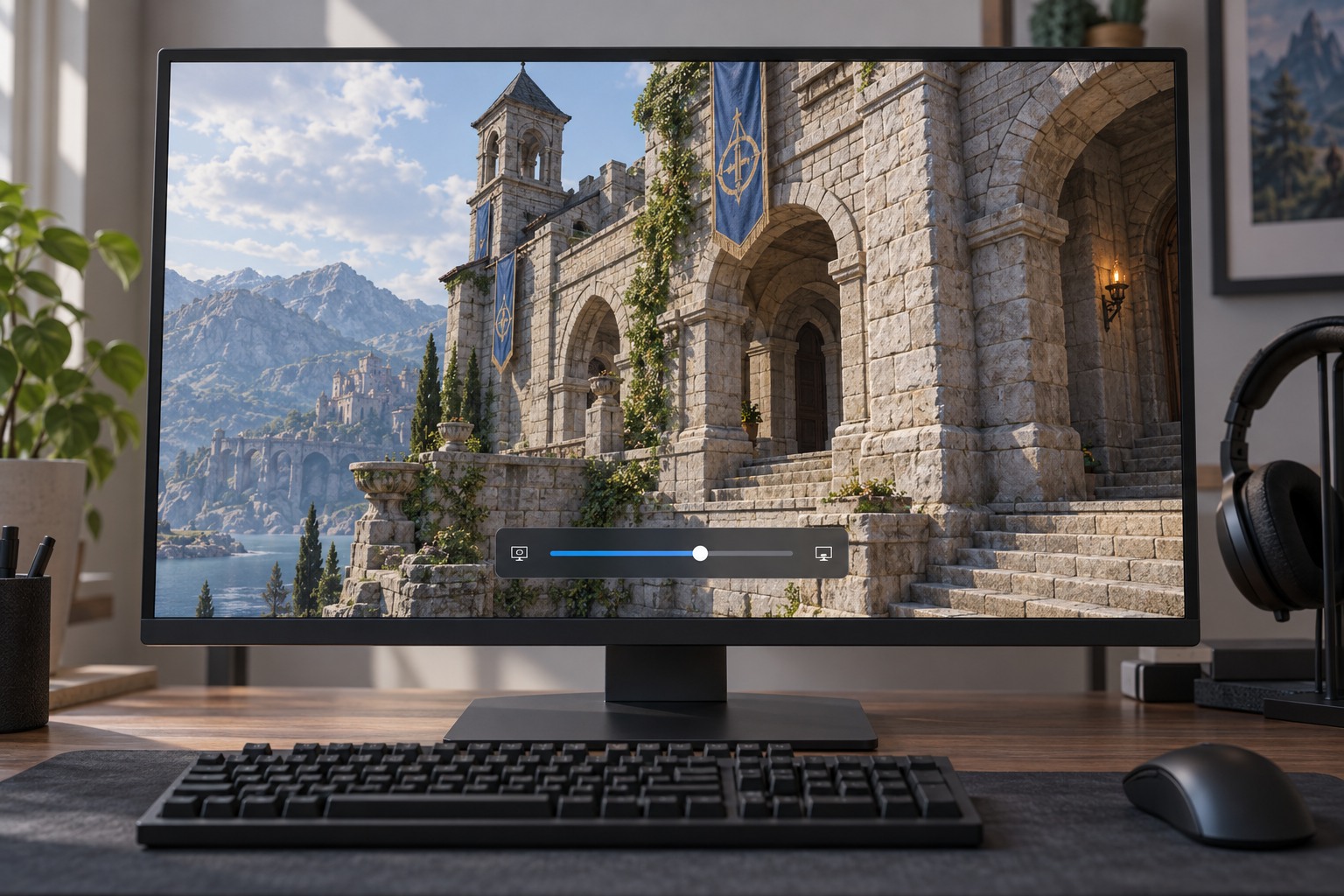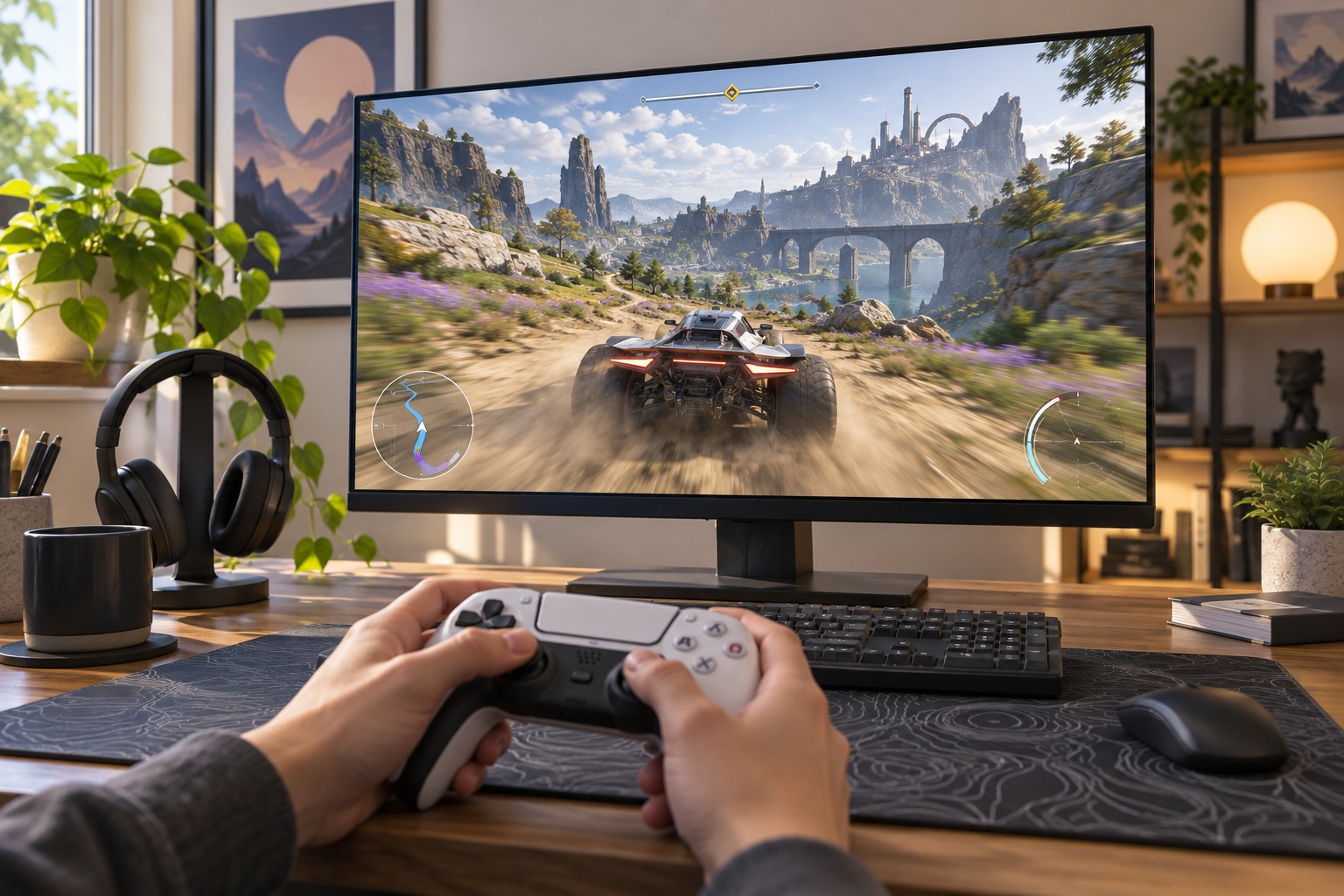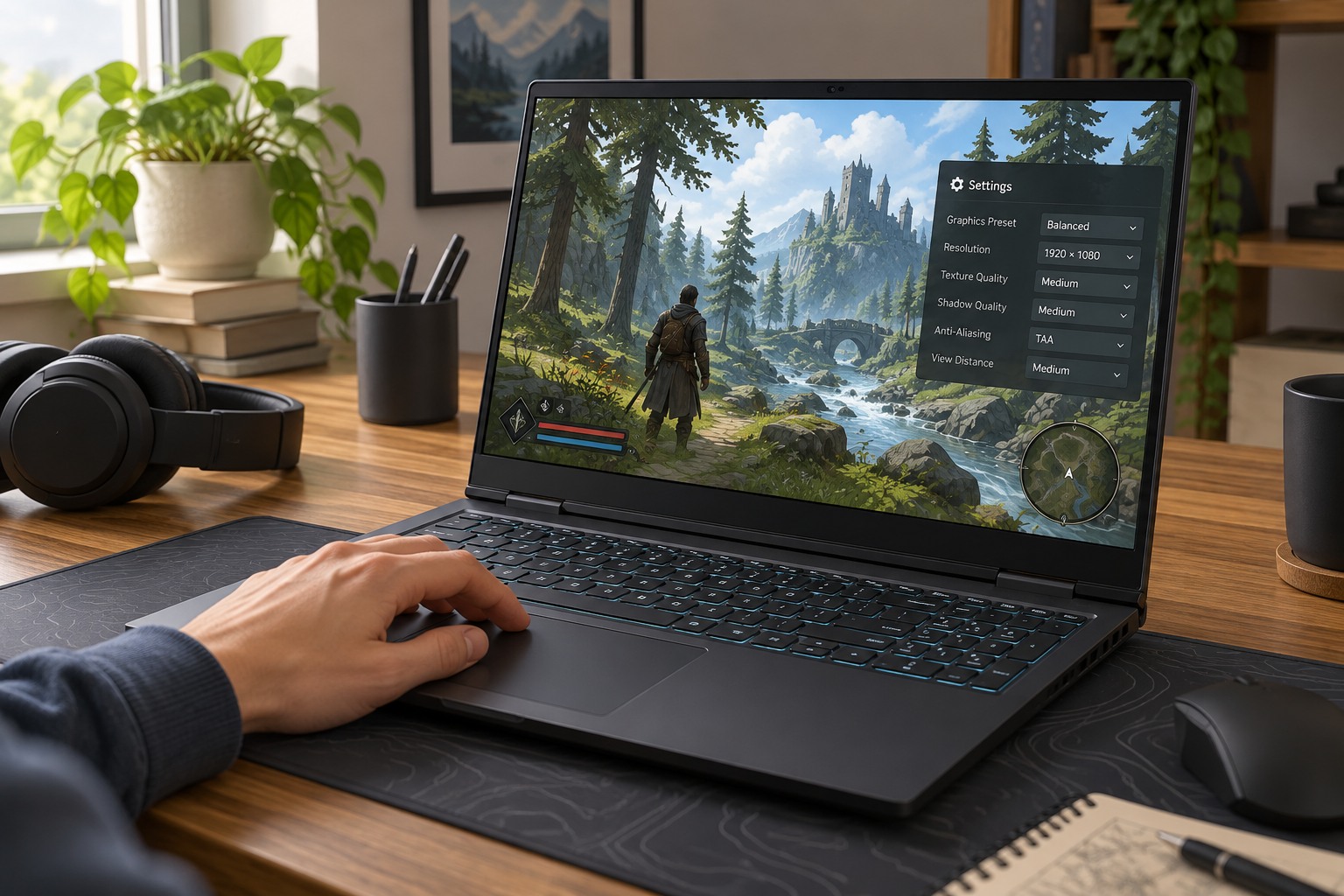
Start with the target, not the mode name
Choose a frame-rate goal that suits your display and the way you play. Then measure or observe the game without changing several settings at once. If performance is already comfortable, an aggressive upscaling mode may sacrifice detail without solving a problem. If the game struggles in demanding scenes, compare modes in those scenes rather than only in an empty menu area.
Names such as Quality, Balanced and Performance describe positions within a particular implementation. They are not universal image-quality guarantees across games or technologies. AMD describes FSR upscaling as reconstructing a higher-resolution image from lower-resolution frames, while its product documentation separates generations and hardware support. Check the version and options actually available in your game instead of assuming a feature associated with the brand is present everywhere.
Inspect the details that move
Use a route containing foliage, thin structures, reflections and small objects against contrasting backgrounds. Watch for unstable edges, trails behind moving objects or details that appear and disappear. A still screenshot can reveal softness, but it cannot fully show temporal behavior. Turn the camera at your normal playing speed and include the interface, because some implementations handle small moving HUD elements differently.
Compare at the monitor's normal viewing distance. An artifact visible only in a heavily enlarged crop may be less relevant than unreadable signs during play, while a distracting trail can matter even if average sharpness looks good. Keep sharpening constant initially. After selecting a reconstruction mode, adjust its sharpness conservatively if the game provides that control.
Do not confuse a higher counter with a solved bottleneck
Reducing rendering resolution mainly changes part of the graphics workload. If another limit dominates, the improvement may be small. Watch whether the demanding scene becomes steadier, not just whether the highest number increases. Background activity, game simulation and asset-loading behavior can still affect the experience. Upscaling is one option within a settings comparison, not a universal repair for every stutter.
If frame generation is also available, test it separately after establishing the underlying rendered performance. Otherwise you may not know whether the improvement came from lower internal resolution or inserted frames. Keep a note of both controls because they can be grouped together visually in a menu while doing different jobs.
Finish with a longer session across more than one area. A mode that looks acceptable outdoors may struggle with a different combination of particles or lighting. Retain a fallback setting for the most demanding scenes, and recheck after substantial game updates only when the image or performance has actually changed.
When a mode misses the target
Suppose a game reaches your target in an open field but drops noticeably in a dense town. Compare the same town route with one less demanding upscaling mode. If the rendered performance improves substantially, the image-quality tradeoff may be useful. If it barely changes, avoid repeatedly lowering resolution until the picture becomes unreadable; another workload may be limiting that scene.
Next compare a relevant non-resolution setting, keeping a record of the previous value. A crowd-heavy area, a reflection-heavy interior and an asset-loading transition need not respond to the same adjustment. Return to the original mode when a change offers no meaningful benefit. This process prevents a collection of unnecessary compromises from accumulating simply because each slider was moved downward.
When the target remains unrealistic for the current hardware and game, a lower consistent frame-rate goal may be preferable to a setting that swings widely. Judge that option with synchronization configured appropriately for your display. It is a separate decision from image reconstruction and should be compared as such.