Find out what the switch changes
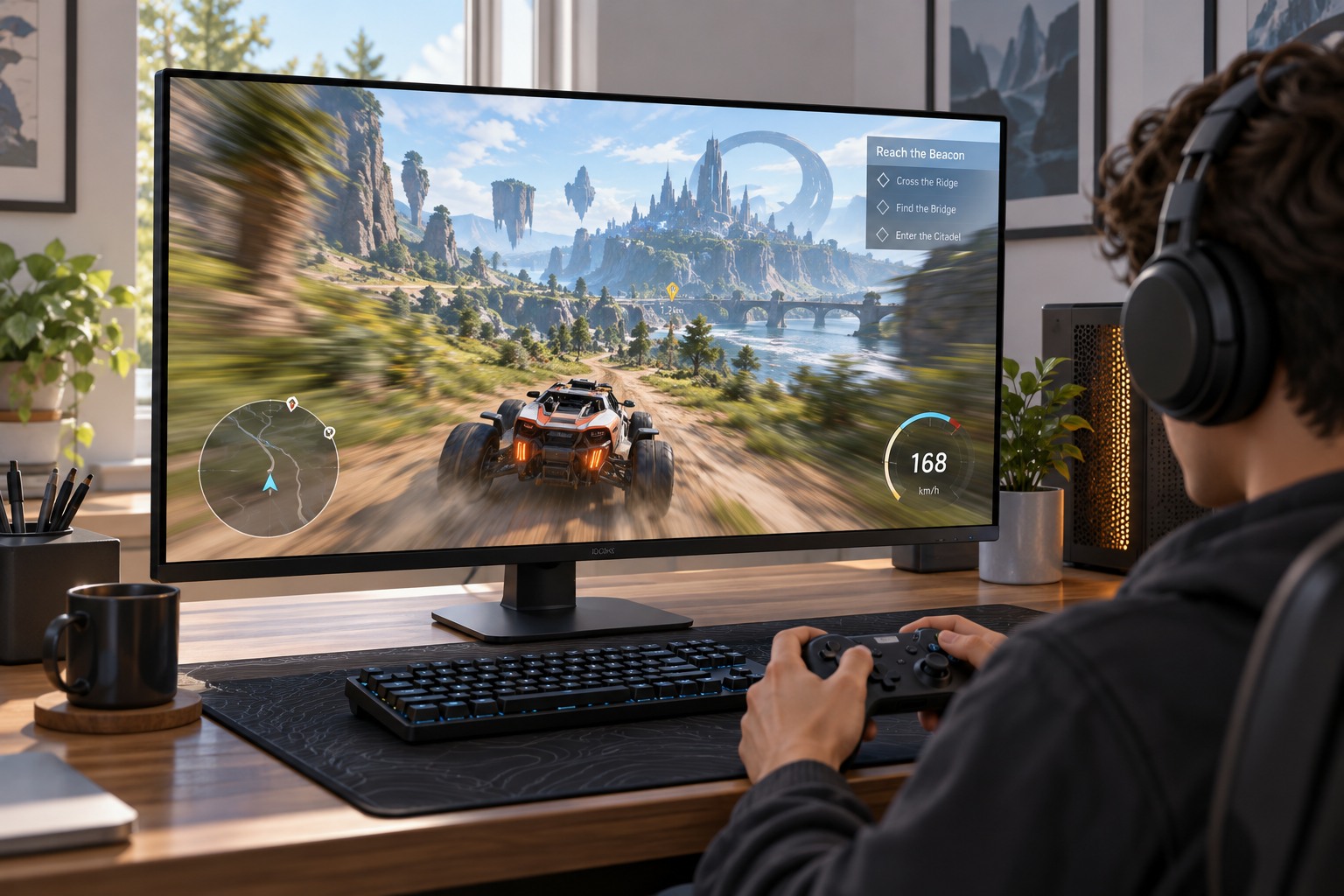
Some games blur the whole view during camera movement, while others apply blur mainly to moving objects. A single slider may control several effects, or the game may provide separate options. Read the setting description and compare a slow camera turn, a fast turn and a moving object while the camera remains still. That reveals more than toggling the option while standing motionless.
Keep resolution, frame-rate settings and camera sensitivity unchanged during the comparison. Otherwise a change in responsiveness or image clarity can be wrongly attributed to blur. If the game offers an intensity slider, compare more than its two extremes. A lower amount may retain some of the intended visual style without obscuring as much detail.
Look at the information you need during movement: a doorway, a route marker, an opponent silhouette or text on a moving object. Decide whether the effect helps movement look continuous or makes those details harder to follow. A screenshot taken when the camera stops is not a useful substitute for this observation because the effect may largely disappear at rest.
Separate blur from other camera effects
Camera shake, head bob, film grain and depth of field can also affect how a scene feels. Change them individually if you are trying to identify a source of discomfort or visual distraction. Motion blur should not become the explanation for every soft image. If the picture remains unclear when stationary, inspect resolution scaling, focus effects and display settings separately.
Try the selected option through normal play rather than forcing yourself through an unpleasant comparison. Different games and camera perspectives can produce different preferences. A racing game's object motion and a first-person game's rapid camera turns do not have to use the same choice. Keep the option that lets you follow the action comfortably; there is no obligation to preserve a cinematic effect that gets in the way.
After an update or preset reset, check the option again if movement suddenly looks different. Save a screenshot of the preferred setting with other camera preferences. If the game does not provide a blur control, consult its official accessibility or graphics documentation for supported alternatives instead of assuming an unofficial file edit is required.