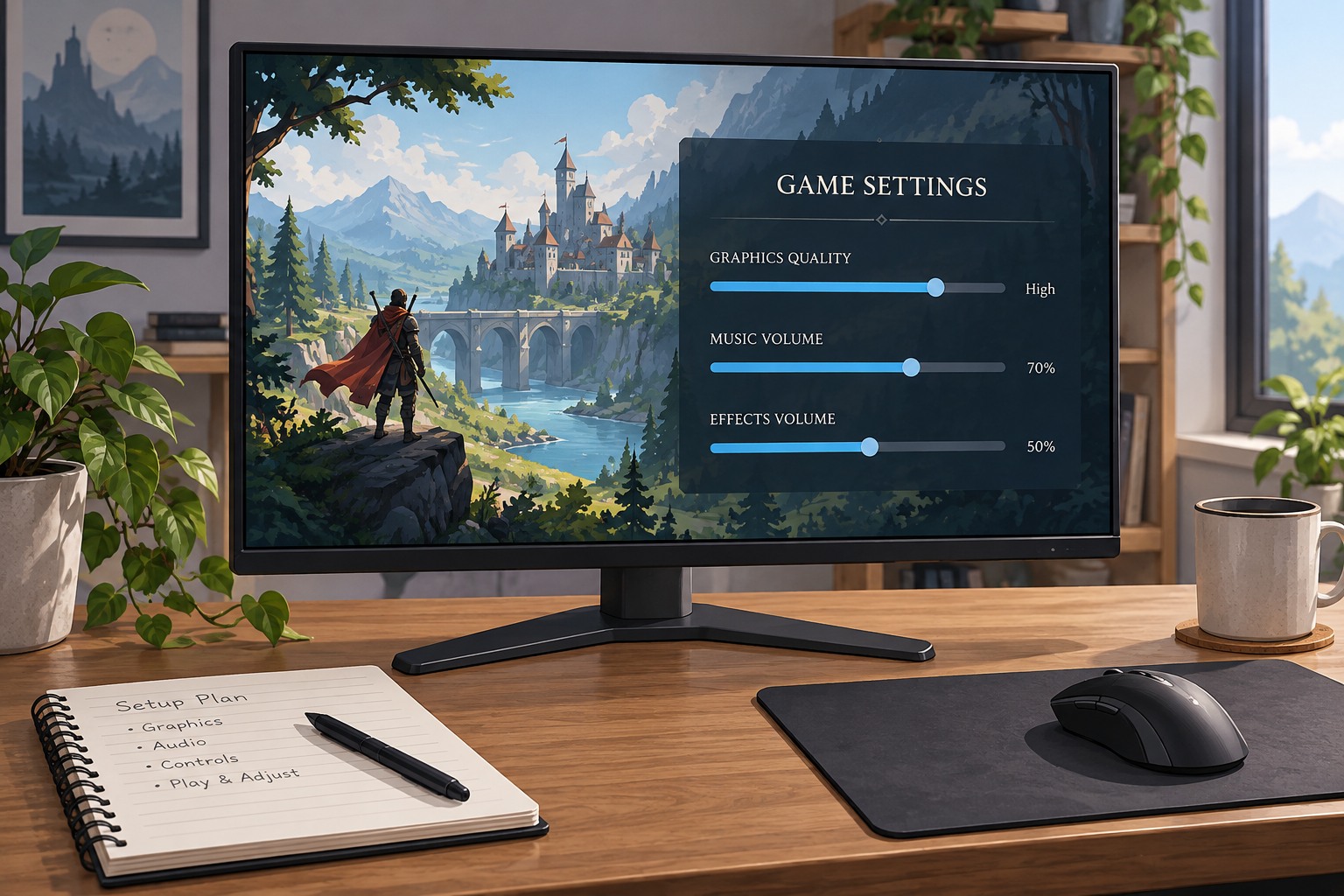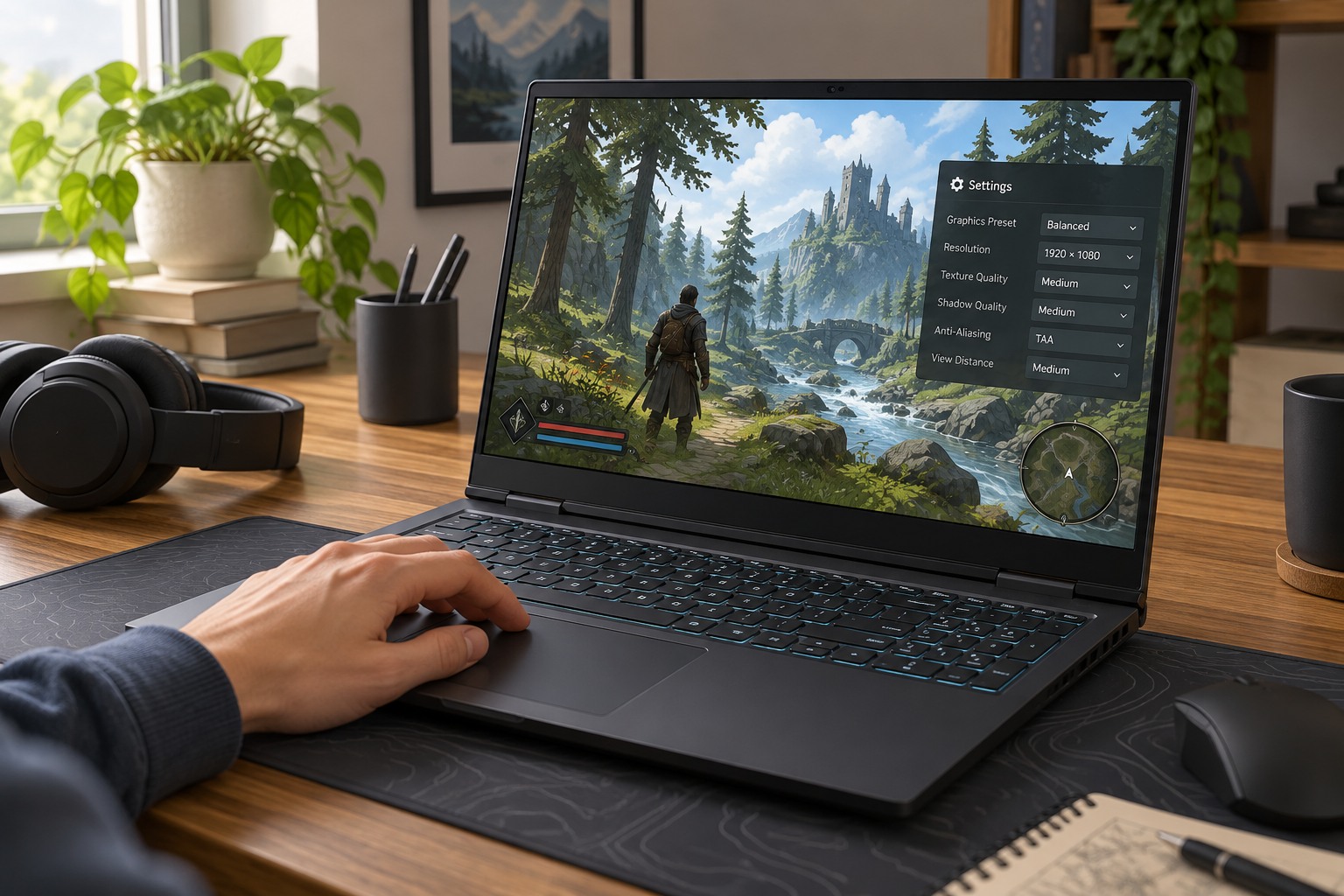
Choose the behavior you need
Borderless mode usually presents the game in a window sized to fill the screen without a visible border. It can make switching to chat, a browser or a second monitor convenient. An exclusive fullscreen mode may offer a different presentation path or display-mode control, but the label alone does not guarantee lower latency. Modern operating-system behavior and the game's graphics API both matter.
Microsoft documents Windows 11 optimizations for compatible DirectX 10 and DirectX 11 games in windowed and borderless modes. Those optimizations can change their presentation behavior and enable supported display features. This is one reason an old rule that fullscreen is always faster is unreliable. Consult the game's options and the operating system's current guidance rather than treating the mode name as a benchmark result.
Think about your normal session. If you frequently answer messages on another screen, observe how quickly the game loses and regains focus. If you play without other applications, that convenience may matter less. Check whether the mouse remains captured appropriately and whether accidentally clicking outside the game interrupts an important action.
Compare the same resolution and refresh
Before testing performance, verify that both modes use the intended output resolution and refresh rate. Borderless mode may follow the desktop configuration, while another mode may expose separate choices. A difference caused by running at a different resolution is not a fair comparison of presentation modes. Keep graphics quality and synchronization settings consistent as far as the game permits.
Run the same short scene and include an ordinary interaction. Look for tearing, stutter, delayed-feeling controls and unexpected scaling. Then switch to another application and back. Check whether the game restores sound, controller input and the correct monitor. A mode that wins a small numerical comparison but repeatedly mishandles focus may be less useful for the way you play.
Troubleshoot the specific failure
If a mode produces a black screen, wait for any automatic revert prompt and use the game's documented recovery method. Avoid repeatedly forcing unsupported display modes. Restore the known desktop configuration and consult the game's support guidance if necessary. If only capture software or an overlay fails, test that component separately instead of changing every graphics setting.
Keep the selected mode in a screenshot with the resolution and synchronization controls. Revisit it when changing displays or when a specific update alters behavior, not because another player's setup uses a different option. The best result is a mode that displays correctly, responds well and fits your switching routine on the equipment you actually use.