Choose a sustainable target
Watch a representative demanding scene before setting the limit. A cap chosen from the highest number in an empty room may be irrelevant during normal play. Look for a target the game can hold through the areas you actually visit, while considering the display's refresh capabilities and your preferred response. A lower stable target can be more useful than repeated swings around an ambitious one, but the preference should be tested.
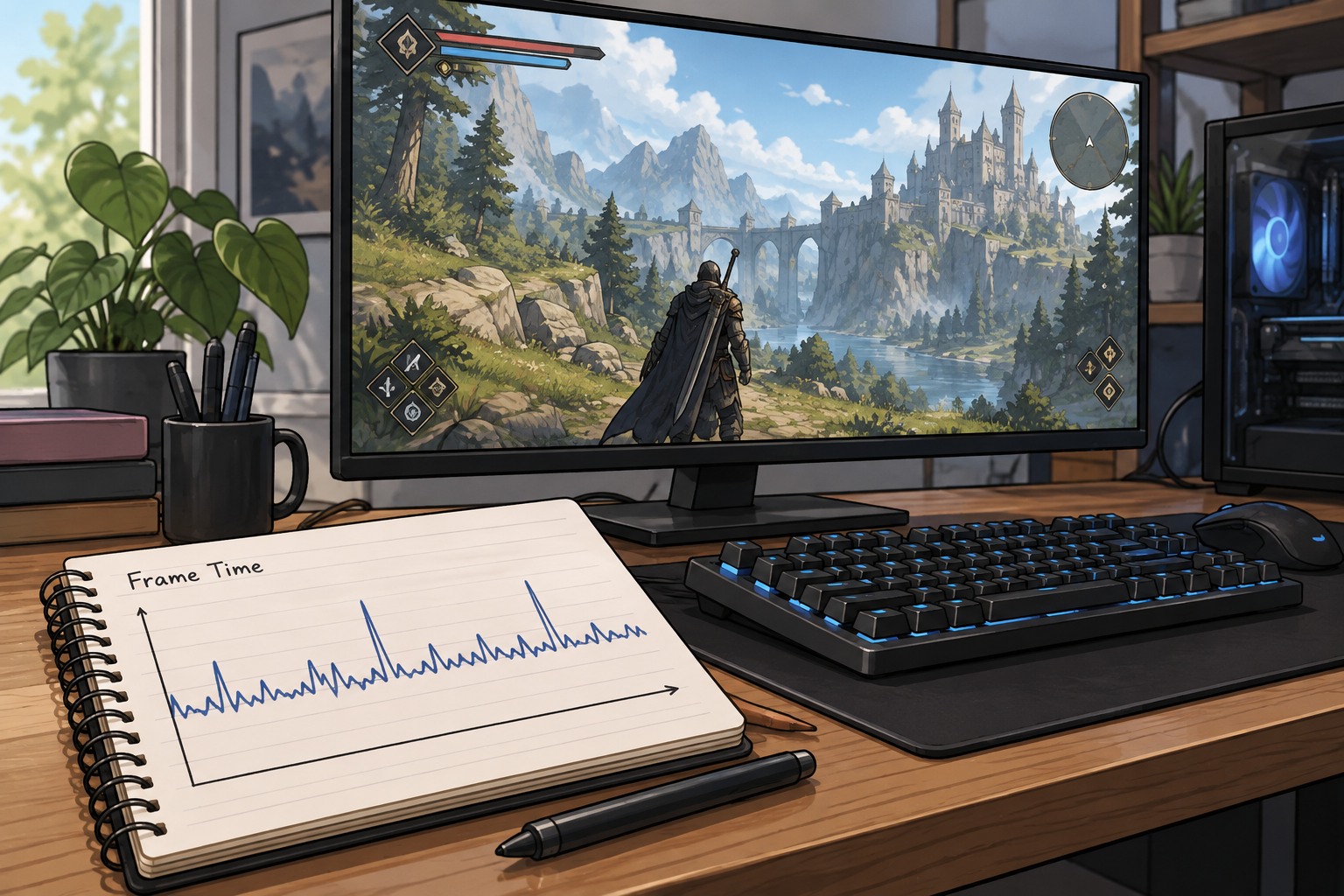
A cap does not repair every hitch. Loading pauses, shader compilation, network problems and other interruptions can remain even when the average frame rate sits below the limit. If the game still pauses at specific events, note those events rather than repeatedly lowering the cap. The limiter controls a rate target; it is not a general diagnosis of the underlying problem.
Consider noise and power as well as motion. Rendering frames beyond what you find useful can create extra work, though the actual effect of a cap depends on the hardware and workload. Compare a normal session with the same graphics settings and listen for any worthwhile change. Avoid promising a particular temperature or energy saving without measuring that specific setup.
Know which limiter is active
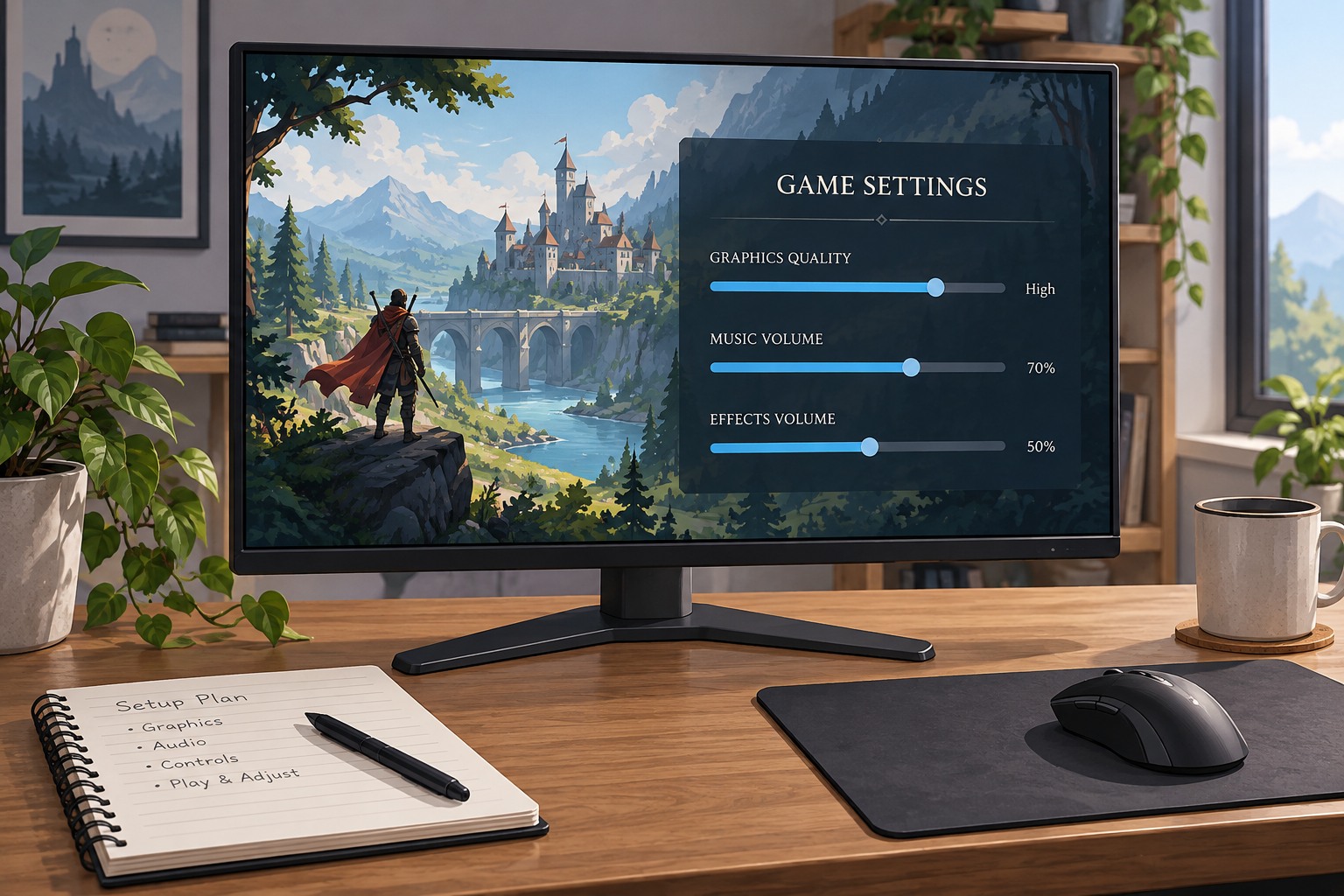
A game may offer its own limit while the graphics driver or another tool provides an additional one. Start with a single supported limiter so the result is easy to understand. NVIDIA notes that when certain limiting features are active together, the lower limit can apply. That helps explain why changing one menu value may appear to do nothing when another control is still restricting output.
Record whether the cap applies to gameplay, menus, background windows or all of them. Some games expose separate values. A menu that runs differently from the match is not necessarily ignoring the setting. If you use frame generation, check whether the limit refers to the rendered or displayed rate in that implementation. Do not assume the counter and the cap count identical events.
Synchronization adds another variable. Follow the supported guidance for your display's fixed or variable-refresh mode, and avoid adopting a precise below-refresh formula without understanding the context. If you change both synchronization and the cap, compare them in separate steps. Otherwise an improvement or problem cannot be attributed confidently to either one.
A background-window cap can also explain a sudden low counter when you click a chat window on another monitor. Return focus to the game and see whether the original target resumes. If it does, that may be the intended background behavior rather than a performance fault. Decide whether the background limit suits your use, especially if you regularly watch the game while interacting with another application. Keep that choice separate from the foreground gameplay target.
Validate across a whole session
Suppose a game fluctuates between a comfortable rate in corridors and a much lower rate in a crowded arena. Test a cap that is realistic for the arena, then play both areas. Check whether motion feels more consistent and whether controls remain suitable. If the quieter scene now feels unnecessarily constrained, decide whether the consistency is worth that tradeoff or whether another graphics adjustment offers a better balance.
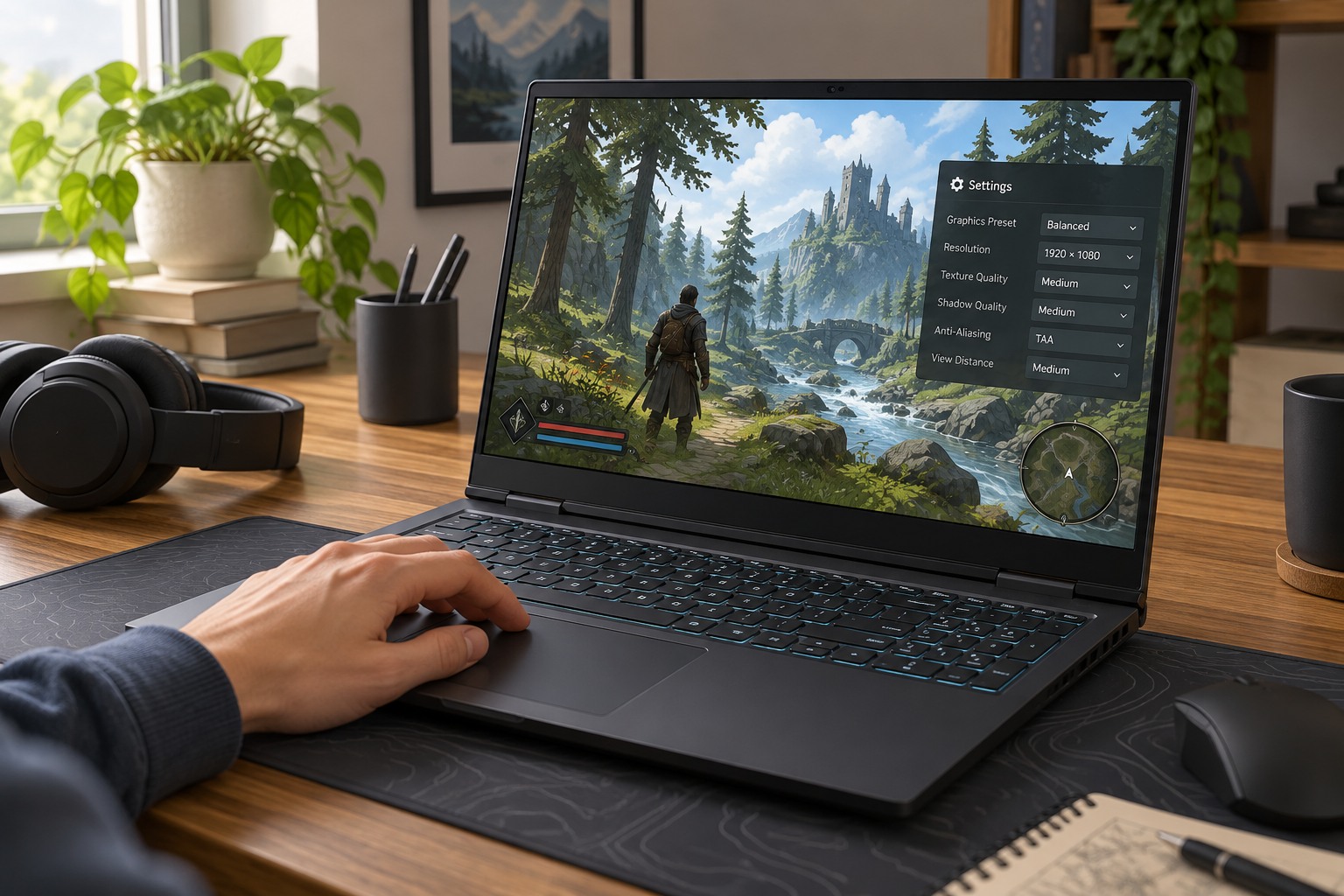
Repeat the check after connecting a different monitor or changing the laptop's power arrangement, because the useful target may change. Keep the configuration simple enough that you can explain it later: one limiter, a known target and a documented synchronization setup. When you are satisfied, leave it alone until there is a concrete reason to revisit it. Constantly moving the cap based on momentary counter peaks makes comparison harder rather than more precise.