Do not launch through an unexplained warning
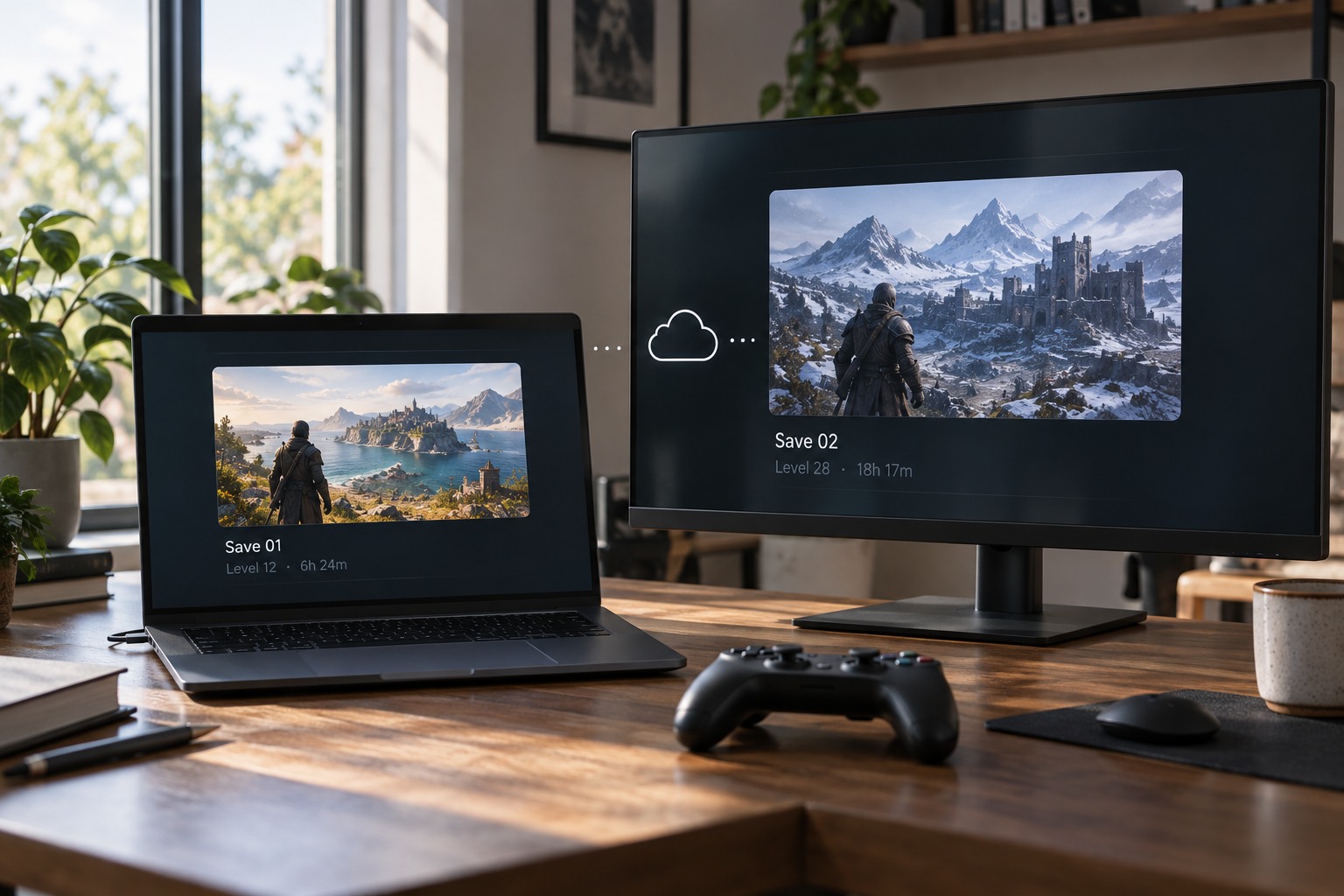
Read the conflict message and note which device, location and time it associates with each copy. Take a screenshot for your own reference if the choices are unclear. Avoid dismissing the warning just to reach the game. Steam's cloud guidance warns that continuing after synchronization problems can create conflicting progress, so resolving the underlying state is preferable to repeatedly clicking through it.
Close the game on other devices if it is still running, using the normal exit procedure. Do not start another session elsewhere while deciding which copy to keep. New activity can change timestamps and make the situation harder to understand. The immediate goal is to preserve the current evidence, not to force the service into choosing something automatically.
Reconstruct the last successful session
Write down where you last played and what happened in that session. A completed mission, a newly acquired item or a character location may identify the desired save more reliably than a timestamp alone. Clocks can be wrong, and some files change when settings are saved even if campaign progress did not advance. Treat the displayed time as one clue rather than the entire answer.
Consider an example: the desktop finished a chapter on Tuesday, while a laptop used an older offline copy on Wednesday. The laptop's file may be newer in time but less advanced in the campaign you want. Choosing the newest label without understanding the sessions could discard the desktop branch. Decide which progress matters before interpreting which button corresponds to it.
Check the profile and edition too. A similar game name or another household account can make two unrelated saves appear to be a synchronization problem. If the title has separate native and older-generation versions, make sure you are examining the intended one. Do not delete files merely because their folder names are unfamiliar.
Ask other household players whether they used the same profile during the period in question. A shared account can contain a perfectly valid session you did not know existed. Do not overwrite it on the assumption that an unfamiliar location is corrupted data. Identify whose campaign it represents and use separate supported profiles or slots going forward. This is a data-ownership question that a timestamp cannot answer for the household.
Preserve copies through supported methods
For a PC game that documents local save files, make a separate copy while the game is closed if its instructions support doing so. Store it outside the active synchronized location and label it by device and date. Include the complete documented save set rather than selecting one file by guesswork. A backup made before the conflict decision can be useful if the chosen branch turns out to be wrong.
On a console, use the platform's supported backup or transfer facilities; individual files may not be accessible as ordinary documents. Some games keep progress on a publisher server and offer no equivalent local copy. Follow that game's support procedure rather than importing a PC file-management solution. If you cannot confidently identify the desired branch, seek support before overwriting either one.
Verify once, then resume carefully
After choosing the intended copy, launch the game and inspect recognizable progress before making major new changes. If it is wrong, stop and consult the recovery options while your independent copy or other device remains untouched. Do not repeatedly alternate conflict choices in the hope that one eventually restores the right session; each synchronization can change the available state.
Once the correct progress is confirmed, exit normally and let synchronization finish before using another device. Adopt a clear handoff routine: close, wait for sync, then launch elsewhere. Keep offline sessions intentional and reconnect them before continuing the same campaign on another machine. Cloud storage is convenient, but a consistent handoff reduces the ambiguity that causes many conflicts.