Separate progress, preferences and installed software
A reset can affect different kinds of data depending on the menu you choose. Game progress, graphics options, input mappings and installed software may be stored separately. Read the exact reset description rather than assuming it only changes the setting that currently causes trouble. A button called restore defaults can have a much narrower effect than a device factory reset, but the wording varies.
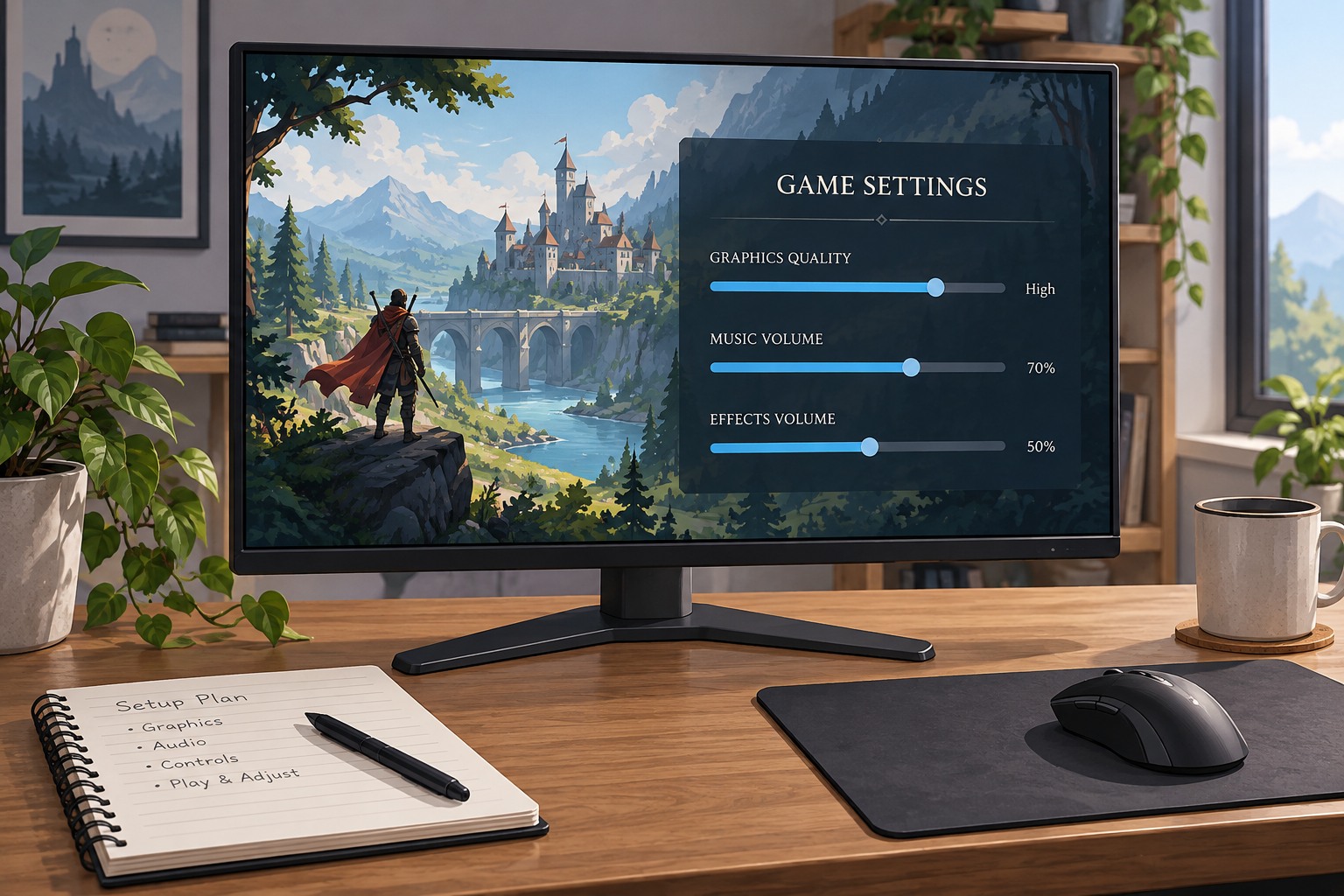
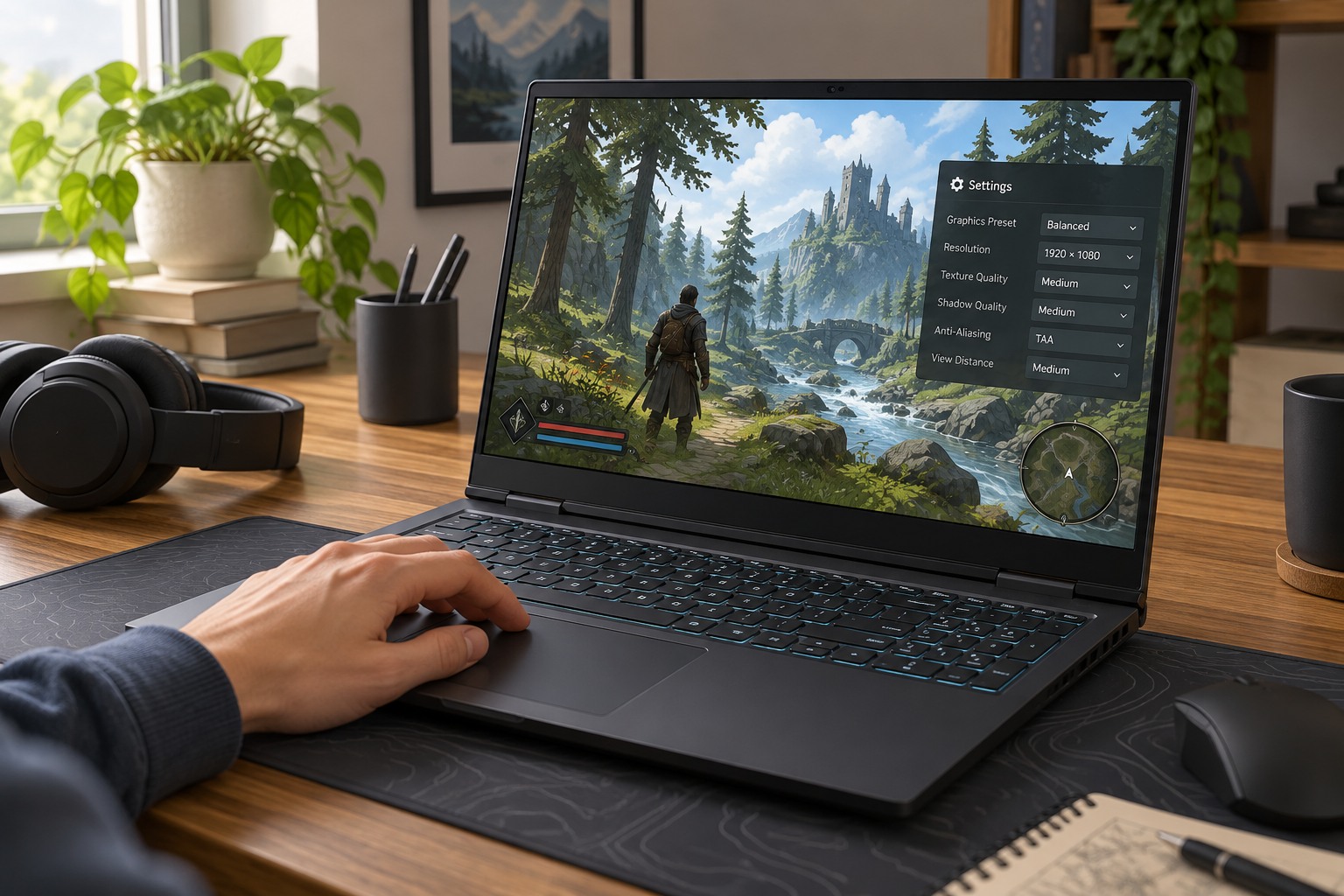
List the preferences that matter to you: accessibility options, custom controls, audio routing, display settings and any named controller profiles. Take screenshots of relevant menus, including submenus. Screenshots are useful even when an export function exists because they provide a readable reference if an exported profile cannot be imported into a newer version.
Use the supported export or file location
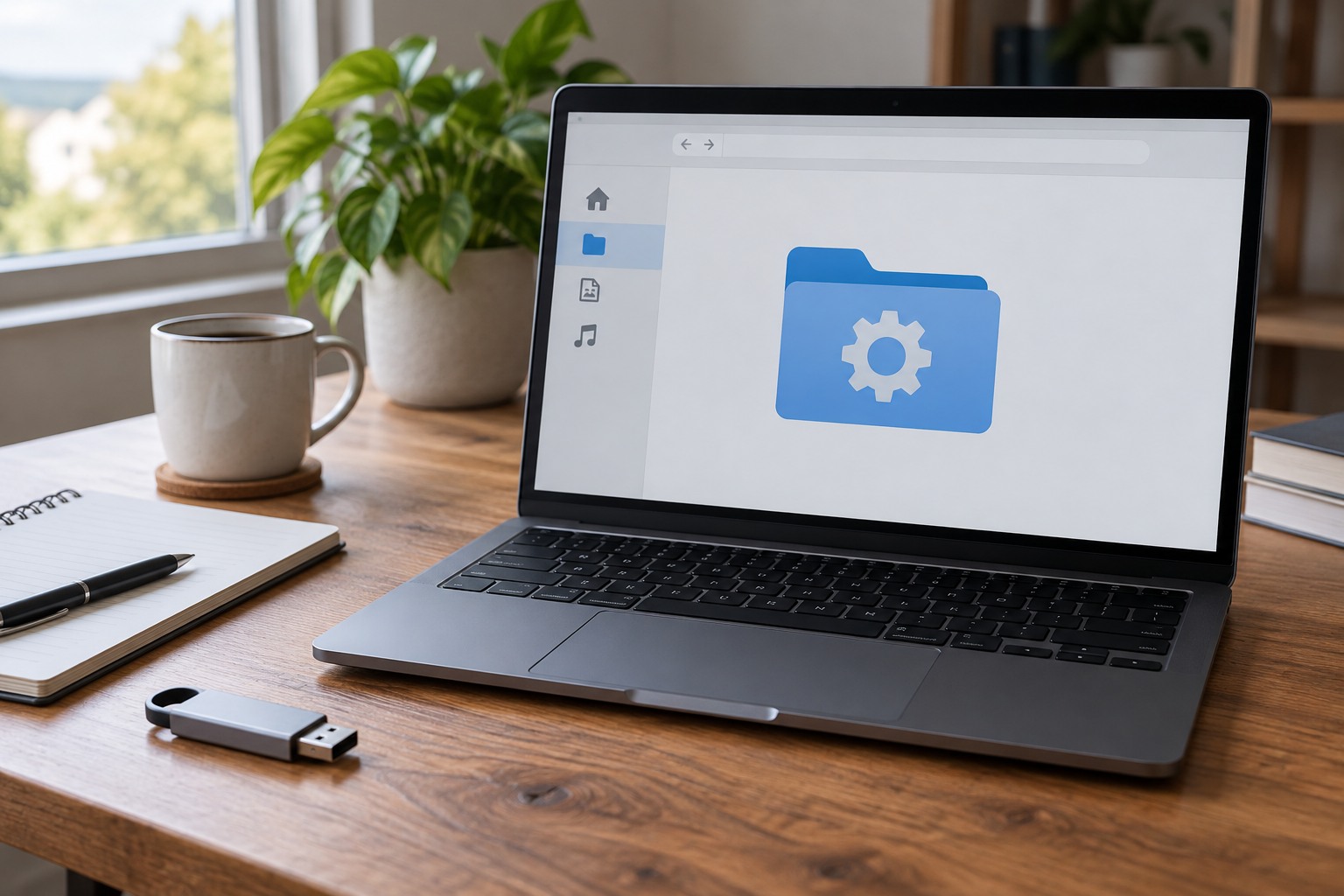
If the game or device software offers an export feature, use it and label the file with the application, version and date. Check whether the export includes all settings or only one profile. A controller utility may export button assignments without including the game's own sensitivity settings. Keep the original export unchanged and store it somewhere outside the folder being reset.
For manually copied PC configuration files, use the location documented by the developer and close the application first. Copy the complete required set rather than guessing from filenames. Do not include unrelated credentials or personal files in a folder intended for sharing with support. A configuration file can contain paths, account identifiers or other details that deserve review before it leaves your computer.
Cloud synchronization is not a substitute for an independent pre-reset copy. The reset may be synchronized too, or the service may not include those settings at all. Check its documented scope. On a console, use supported backup facilities and screenshots rather than assuming you can access or restore individual files as on a PC.
For a custom controller layout, capture both the mapping and any activation behavior such as hold, toggle or long press. A list of button names alone may omit the feature that made the layout comfortable. Include separate vehicle or aiming pages if the game uses them. If the reset is intended to investigate graphics, this record lets you restore those input preferences without importing the entire potentially problematic configuration file.
Test the reset without immediately restoring everything
After confirming the backup exists and is readable, perform only the reset relevant to the problem. Test the original symptom in the clean state before importing all preferences. If you immediately restore the entire configuration, you may also restore the setting that caused the issue and lose the diagnostic value of the reset.
For example, if an unusual display mode caused a startup problem, first confirm that the game launches with defaults. Restore controls and accessibility preferences, then revisit graphics choices in small groups. Keep the known-working state available. This is slower than importing everything at once but makes it possible to identify which change reintroduces the failure.
Keep a recovery note
Write down the backup location, the reset performed and the result. Include any setting deliberately left at default. If the issue returns later, that note prevents another round of guesswork. Keep the backup until the game has worked through a normal session, not merely until the main menu appears.
If an exported profile is rejected after an update, consult the application's migration guidance rather than forcing old files into a new layout. Recreate essential settings from the screenshots when necessary. The purpose of the backup is to preserve choices and support recovery; it is not a guarantee that every file format remains compatible forever.