Separate shape from protocol
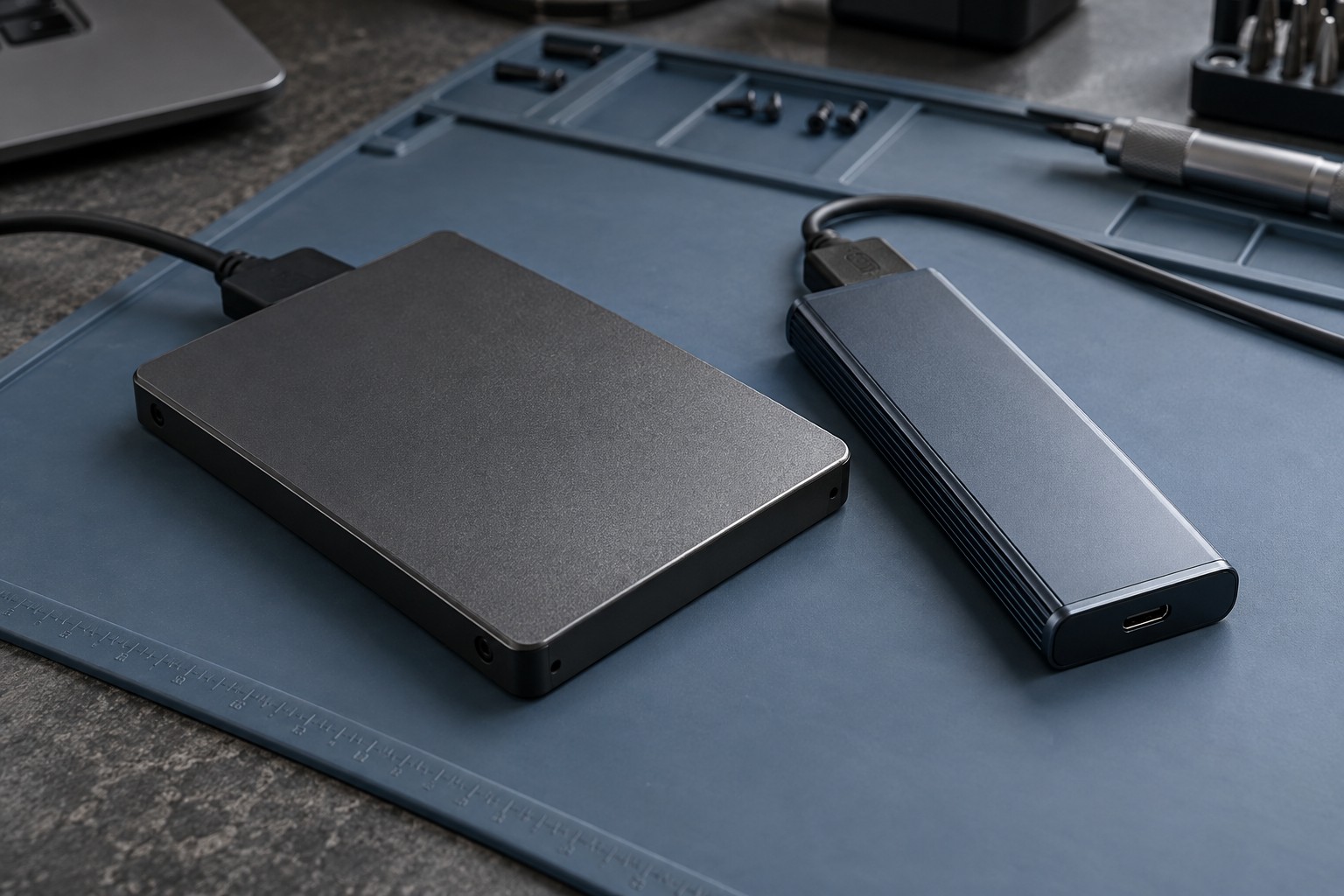
An M.2 drive is a small card-shaped device, but its appearance alone does not tell you whether it uses SATA or PCIe with NVMe. Kingston's SSD guidance explains that the supported protocol matters alongside the socket and keying. A drive can look close to the right shape and still be unsupported by a particular slot.
Read the motherboard or computer manual for each available slot. Some systems support only a specific interface or module length, while others offer several options. Check whether using a slot changes the availability of other ports. Those shared-resource details belong to the exact motherboard, not to M.2 drives in general.
Compare the task, not just sequential speed
NVMe drives can offer much higher transfer specifications than SATA drives, but a large sequential number does not translate directly into the same multiple of game-loading speed. Games perform different kinds of work while loading, and other components remain involved. Use results for the workload you care about rather than turning a specification ratio into a performance promise.
Check the game's official storage requirements. Some titles specify an SSD or a particular performance expectation. Meeting that requirement is more important than assuming that any drive with enough capacity is suitable. An existing compatible SATA SSD may still serve some libraries well, while a new system may offer a convenient NVMe path.
Large file transfers and frequent installations can make transfer behavior relevant beyond launching a game. Compare capacity, warranty terms and the drive's sustained behavior where reliable information is available. Avoid choosing solely from the largest advertised peak figure.
Include installation details
A 2.5-inch SATA drive needs a suitable mounting location, a data connection and power from the system. An M.2 drive needs the correct slot, length and retaining hardware. Check whether a heatsink is required or supplied and whether it fits beneath other components or a laptop cover.
Follow the system and drive instructions for installation and thermal pads. Do not add a bulky heatsink to a laptop merely because it fits the drive itself. Clearance and the laptop's cooling design matter, and a cover should never need to be forced over the part.
Choose the supported option that fits the capacity and workload plan. If adding a game drive, confirm how the launcher creates or moves its library. Keep backups of irreplaceable data before storage changes, and verify that the system recognizes the correct drive before formatting anything.