Check the display's actual capabilities
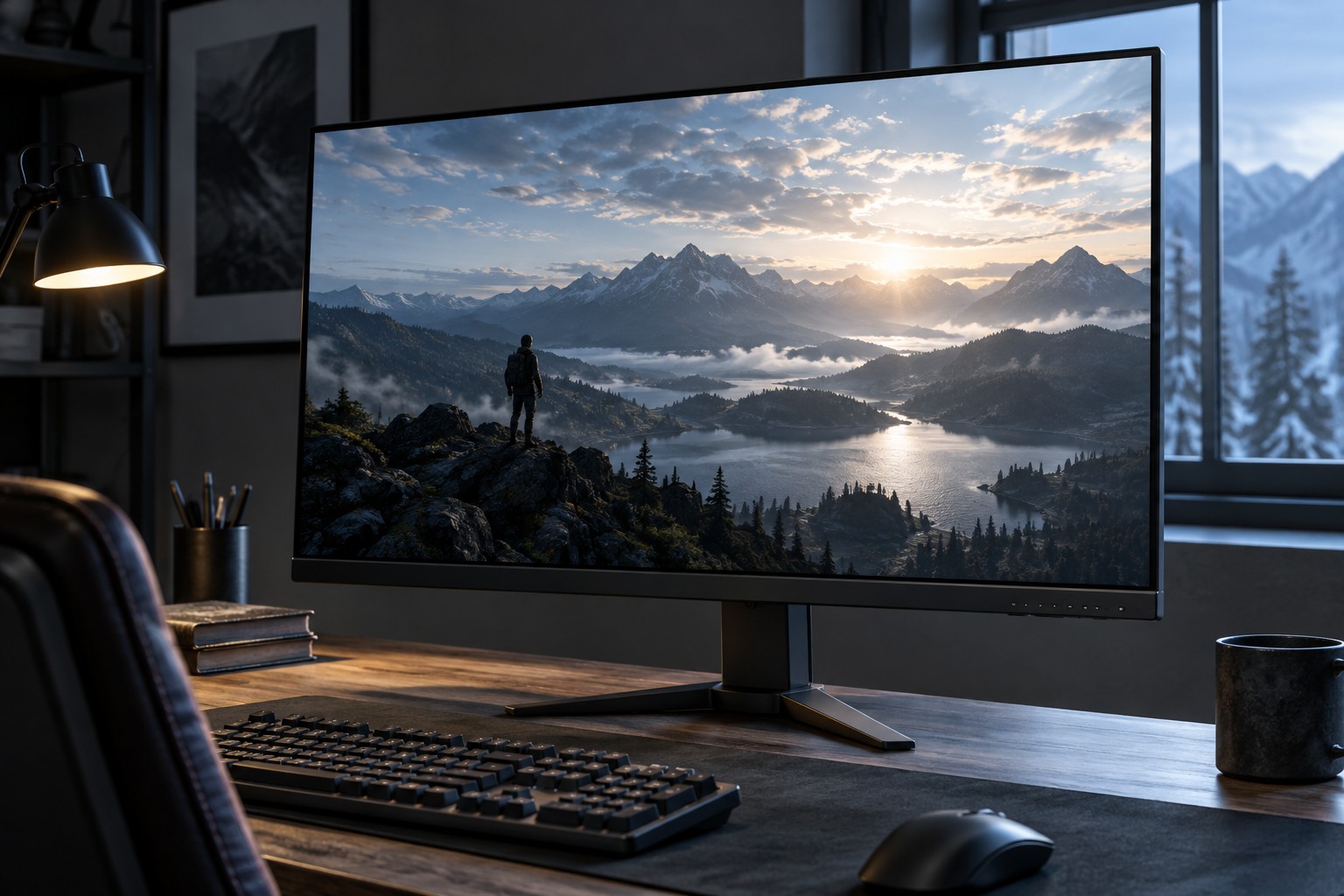
Read the monitor's HDR specification alongside brightness, contrast and any dimming information. A product can accept HDR input without offering the same image capability as another HDR-labeled display. Look for meaningful model-specific measurements or a suitable certification rather than treating the letters as a single quality level.
Consider the room as well. Reflections and ambient light affect how dark and bright details appear. A display that looks impressive in a controlled demonstration may need a different placement in your room. Keep the viewing environment in the comparison instead of trying to solve every issue through a brightness slider.
Verify the signal path
Confirm that the source, selected port and cable support the intended resolution and HDR mode together. A dock, adapter or switch can introduce a limit. If the option is missing, test the documented direct connection before assuming the display is defective.
Microsoft's Windows HDR guidance explains that the HDR-capable display must be selected when adjusting a multi-monitor setup. Check the actual selected screen and available settings. A system with one HDR display and one standard display can require different treatment for each.
The game may have its own HDR option and calibration sequence. Read its instructions and distinguish native HDR from any operating-system conversion feature. Enabling every similarly named option does not necessarily create a better result, and it can make troubleshooting harder.
Calibrate with the supplied instructions
Use the game's or platform's calibration patterns as directed, with the monitor in the intended mode. Do not copy another person's peak-brightness value unless it applies to your exact display and configuration. Settings for a different model can clip bright detail or change the intended dark range.
Compare a familiar scene with detail in both bright and dark areas, then check ordinary menus and desktop content. If standard content looks different with HDR enabled, use the operating system's documented controls rather than changing unrelated monitor settings at random. Keep a record of the original configuration.
A satisfactory result should preserve useful detail and suit the room, not merely make everything brighter. If a particular game or display combination looks better in a standard mode, that is a valid practical choice while investigating support. HDR is a complete viewing arrangement, not a switch that guarantees improvement in every situation.