Confirm a suitable connection
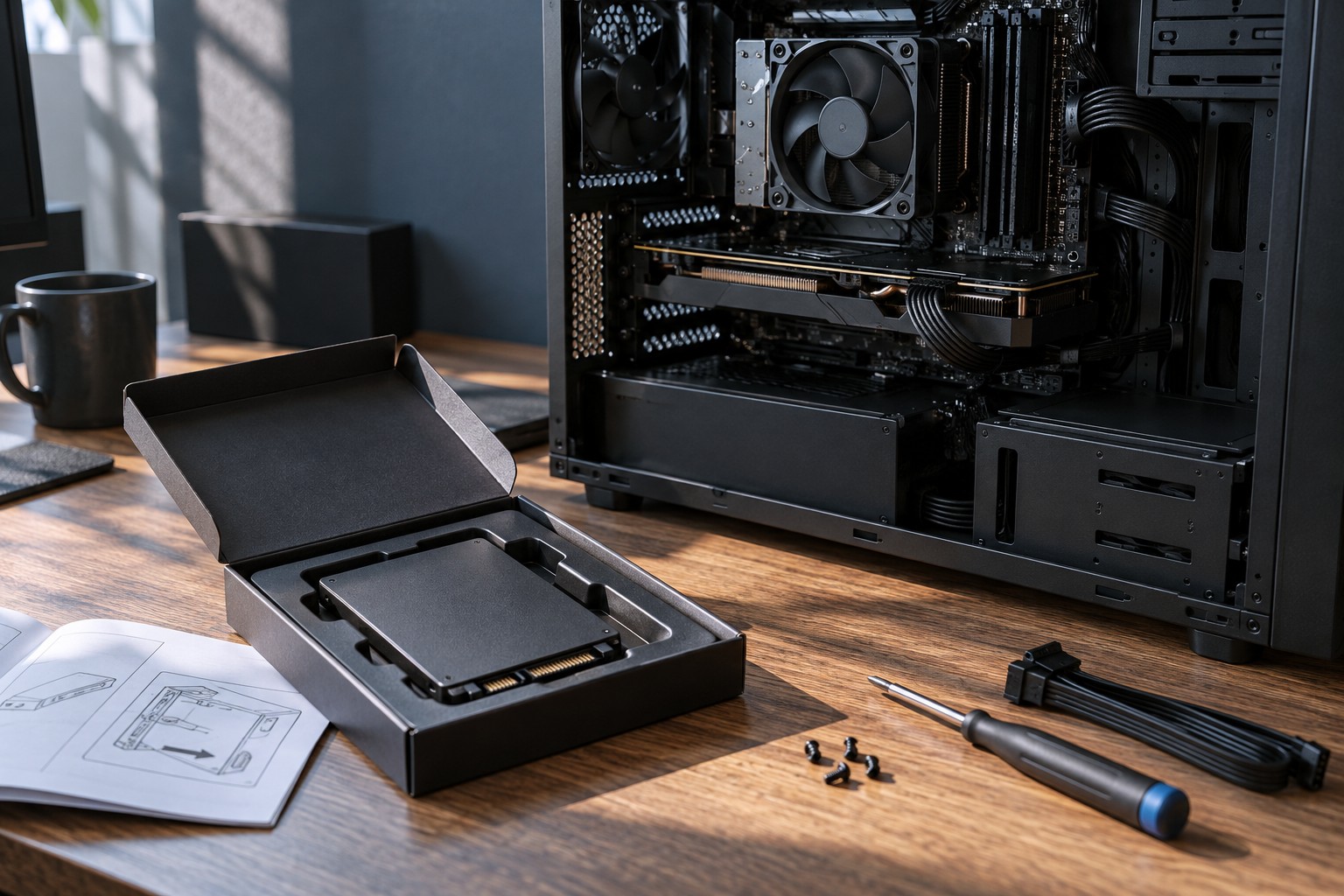
Check the computer manual for an available supported internal slot or external interface. Match the drive's format, interface and capacity requirements. An empty-looking connector is not enough information to choose a drive, particularly in a laptop where size and service access can be restricted.
Decide whether the drive will stay connected permanently. An external library can be convenient, but games will be unavailable when the drive is disconnected. Give the enclosure a stable place and route its cable away from the mouse and chair so an accidental movement does not interrupt activity.
Identify the disk before setup
Back up irreplaceable data before changing storage. When the operating system asks to initialize or format a disk, verify its model and capacity against the newly installed drive. Formatting the wrong disk can erase existing files. Do not guess from a drive letter alone, because assignments can differ between systems.
Use the file system and setup procedure supported by the operating system and launcher. A disk already used for another platform may need a different arrangement. Read prompts fully and keep any existing data elsewhere before accepting an operation that removes it.
Create a library through the launcher
Use the launcher's documented storage or library settings to add the new location. This lets it manage installations rather than relying on a folder move that leaves paths unresolved. Name the library clearly so you can distinguish it from captures, backups and general downloads.
Move a small or easily reinstalled game first if the launcher provides a supported move function. Let the operation complete, then launch the game and confirm that updates and saves behave as expected. Game installation files and saved progress may be stored separately, so moving the library does not automatically move or back up every save.
If a launcher lacks a move option, follow its official reinstall or discovery procedure instead of inventing a path change. Different launchers handle existing files differently. Keep the original installation until the new arrangement is confirmed when space and the supported procedure allow it.
Maintain the split
Choose the intended destination when installing future games and periodically inspect free space on both drives. A new library does not prevent the original system drive from filling with updates, caches or captures. Keep those categories visible in the storage plan.
For an external drive, close games and launchers before disconnecting and use the operating system's safe-removal procedure where required. Record the drive's purpose and keep its cable with it. A second drive works well when the connection and library location remain predictable.